

Device Guide
Keep Your Device Up to Date
Updates add features like live test progress, fix problems, and keep your results traceable. Updating takes a few minutes and you can do it from the device itself.
Why Updates Matter
Your device's software decides what it can do. Older versions can't send live progress while a test runs, and leave out records that support your accredited results, such as the media lot used.
Keeping your device up to date means every result arrives complete.
Updating Your Device
Finish Any Running Test
A device can't update while a test is running. Wait for the current test to finish, then keep the device plugged in to mains power.
Check It's Online
Make sure the device is connected to Wi-Fi. If it isn't, connect it from Settings first.
Open Settings, Then Firmware
From the home screen, go to Settings and tap Firmware. The device checks for an update and shows the version that's available.
Tap Update
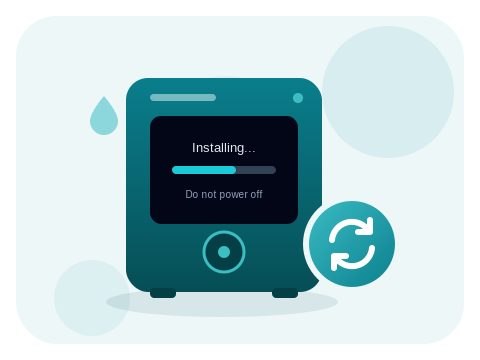
The screen shows Downloading, then Installing. Don't turn the device off or unplug it. It restarts by itself when it's done.
Wait for the Restart
After a large update the screen can stay blank for up to a minute while the device finishes setting up. Leave it plugged in until the home screen appears.
Check Your Version
Hold the Settings button on the home screen for three seconds to open About, which shows the firmware version. The notice in your dashboard clears after the device's next check-in.
Questions
Need a Hand?
If your device won't update, or you are unsure about a step, our New Zealand-based support team can walk you through it.